Presentation templates are important and much more accessible than making your own. It’s a strong statement, but it’s true. Ready-to-use templates are great for on-the-go people who need quick yet professional slides.
But where can you get free ones? Here is some software to get your professional presentation templates:
Canva
Canva, founded in 2013, is an Australian-based graphic design platform with a drag-and-drop concept. The presentation software has one of the most comprehensive free plans. Essentially, anyone can use it.
Choose from numerous stunning templates (almost all of which are free). It contains quirky professional presentation templates. Other Canva presentation templates are built expressly for educational purposes, either for teachers or students. You can easily share presentations to your social media account when you link them to your Canva account.
Canva also has free stock photos, graphics, and other essential presentation essentials. However, some items are only accessible through paid plans.
Google Slides
Google Slides was introduced in 2006 as one of the apps in Google Workspace. It is more akin to Microsoft’s PowerPoint. The only difference is their accessibility. Unlike PowerPoint, you need to go online when using Google Slides. However, it is mobile-friendly. You can create presentations anytime and anywhere with the internet.
The software is entirely free. You just need a Google account, and you’re good to go. You can choose from an array of Google Slides presentation templates that fits your content. As it’s more similar to Microsoft’s, you can download it and edit your professional presentation templates in PowerPoint.
Keynote
If Windows has PowerPoint, Apple has Keynote. The presentation software was introduced in 2003 and has undergone numerous upgrades. Apple users now have multiple Keynote presentation templates they can use. However, this one only works in Apple products like iPads, Macs, and iPhones.
It's more interesting than PowerPoint because it’s more inclined to graphics rather than bullet points. Moreover, Keynote is easier to use because its taskbar is arranged correctly, and the icons are adequately labeled.
Microsoft PowerPoint
The OG presentation software, Microsoft’s PowerPoint, has been around since 1987. It is frequently used and has a recognizable interface, so most people are familiar with it. However, PowerPoint presentation templates are limited, and they often fall flat in this department.
On the other hand, you can add fonts and graphics if you don’t like the presets. Nonetheless, if you don't know what you're doing, it's simple to fall back into a monotonous slideshow.
Characteristics of a Presentation Software

What if you’re not satisfied with the selection I gave you? There are other software, but it’s hard to distinguish the best from the best. I’ll share with you different characteristics of presentation software so you can check if you’ve preferred one tick all the boxes:
| Number of presentation templates | It should have a good amount of templates you can use for many purposes. |
| Unique features | Special components include free stock photos, dynamic transitions, and special fonts. |
| Cost | Some software is free, and some are not. Find one that fits both your budget and needs. |
| Compatibility | Pick software that can work on different devices. |
| Shareability | Choose a presentation software that allows you to collaborate with others and has simultaneous editing. |
| User-friendliness | Not all are good at navigating software. If you’re one of those people, pick one that’s simple yet gives you the power to create outstanding presentations. |
Types of Professional Presentation Templates

Not everybody knows that there are different types of professional presentation templates. Every template is designed for a specific action, job, or event. If you’re curious about these types, here are some of them:
Educational Presentation Templates
Professional presentation templates used in an educational setting are best for professors, students, librarians, and anybody within the academic community. However, it also goes beyond the boundaries of schools and universities. You can use these kinds of professional templates when you’re a presenter at a seminar.
They’re designed to generate engaging and delightful presentations in minutes. Moreover, they make learning more dynamic and appealing.
Company Presentation Templates
Get formal yet creative presentation templates with ones made solely for companies and businesses. They can captivate your audience while significantly impacting your mission, vision, and objectives. The designs are professional in appearance and express confidence. These professional presentation templates are perfect for your next board meeting, report, or weekly town hall.
Pitch Deck Presentation Templates
Use professionally created templates to create an outstanding pitch deck presentation. Win over your would-be investors with stunning slides with an equal balance of text and visuals.
Marketing Presentation Templates
Use these professional templates when presenting your next marketing plan, social media strategy, or newsletter. Their innovative style and simple-to-edit graphics will assist you to tens across the board. They have sleek and modern designs, including visual aids and bold graphics or pictures.
Portfolio Presentation Templates
Want to create an impressive presentation to showcase your skills, abilities, and best qualities? Portfolio presentation templates are perfect for you.
The layout and design of your portfolio presentation are crucial in establishing a good first impression. These slides range from professional to creative presentation templates.
Interview Presentation Templates
Interview presentation templates are more similar to pitch deck and portfolio templates. However, the main difference of this kind is its professionalism. Templates specific to interviews have the right balance of text, color, and visuals. Paylocity HR, along with job interviewers, Human Resource personnel, and job candidates best use it.
Creating the Best PowerPoint Presentation Templates

If you can’t find the best presentation templates, you can make one yourself. You can create your templates from scratch with any software I mentioned earlier. However, I’ll share with you the steps on how to make one in Microsoft PowerPoint:
- Pick the colors you want to choose. You can use the color scheme presets or create one online.
- Once you’ve established the color palette, you can choose the fonts.
- After that, you can now create backgrounds for your PowerPoint presentation templates through the Slide Master under the ‘View’ tab. You can add a pattern or photos as your background.
- The next step is to arrange the placeholders or the boxes where your text and images appear. When doing this step, you need to have the right font size, spacing, and alignment.
- After fixing the placeholders, you can add the transitions and animations to your slides. You can also put bullets, lists, slides specifically for images, and other vital details.
- Once done, you must have a dry run before using your presentation templates in actual scenarios.
Tips for Increasing Audience Engagement

Giving a presentation at any function or event is a fantastic way to showcase your ideas to a large audience. However, no matter how important your material is, it won’t matter if your presentation isn't unique, engaging, and original.
There are many ways that you can mess it up. You'll most likely share the stage with several other speakers, so you need more than great presentation templates. The presentation needs to be imaginative in design, and your delivery is critical to ensuring yours is the most memorable. Here are easy ways to keep your audience’s eyes glued to your presentation:
1. Structure your content
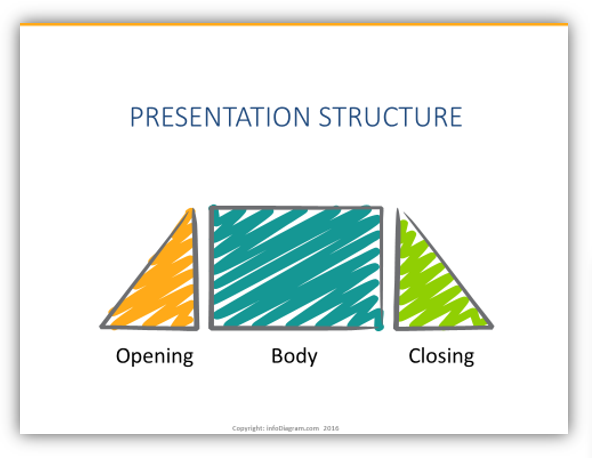
A presentation is like storytelling. It should have a clear beginning, an intriguing middle, and a fantastic ending. In a professional aspect, a presentation should have the following:
- A compelling opening point
- Body slides with supporting information
- A conclusion that ties everything together
Correctly structuring your content establishes a clear link between all of your slides. Thus making it simple for your audience to follow. Also, it is easier to remember information when each point flows seamlessly into the next. Moreover, creating a well-structured presentation will help you with the following tips.
2. Creative visual stimuli
Again, visuals are important to any presentation. They help your audience to stay focused and interested. Here are some pointers on how to pick the correct graphics for your next presentation:
| Image size and quality | Images must be proportionate to your slides and how they will be presented. Moreover, choose photos that are at or near 1024 x 768 pixels. |
| No clipart | Clipart was the top choice of people when adding visuals back in the 1980s to 2000s. However, in the advent of graphics, clipart has been deemed unprofessional. |
| Always credit images | Always cite and put references to where you got your images. As a rule of thumb, only use stock images or royalty-free photos. |
3. 10-20-30 rule
Guy Kawasaki, the chief evangelist of Canva, created the 10-20-30 rule for presentations. The definition of the rule is as follows:
- 10 – a presentation should have ten slides or less
- 20 – you shouldn’t exceed 20 minutes when presenting
- 30 – text shouldn’t exceed 30 points
However, sometimes presentations stray away from this rule. But as a better gauge, you should stick to the rule.
4. Avoid reading slides
Let’s face it, we all experienced reading our presentations. Although we couldn’t help it, we read them because we were unprepared or lacked the confidence to present them. Reading the slides that your audience can already see is a waste of time unless you reiterate crucial points.
It is good to memorize your slides and the structure of your presentation. Also, avoid placing too much text on your presentations. Ideally, keep each slide to 20 words or less to make it concise and straightforward.
5. Your voice matters
Besides your presentation templates, visuals, and content, your voice is another powerful tool when presenting. People become uninterested when speakers don’t have a commanding voice.
But what if your voice isn’t compelling at all? Here are some tips to make your voice presentation ready:
| Breathe | Get enough air in your lungs before speaking. The best way to do it is to breathe air between sentences. |
| Projection | Always speak as if you’re talking to the farthest person in your audience. However, you can tone the volume down when using microphones or other amplification means. |
| Articulate | Don’t eat your words. Slow down and practice pronouncing words so your audience can understand them. |
| Pauses | Stops in your presentations create anticipation. They are great ways to let the information sink into your audience. |
| Pace, pitch, and volume | You can switch between speaking rapidly and slowly, using a high or low vocal tone, and speaking loudly or softly. Changing your pace, pitch, and volume piques your audience’s attention. |
How can I make my presentation accessible to my audience as a talking video presentation?
To ensure your presentation is accessible to your audience as a talking video presentation, you should create a virtual resource by utilizing the 'present and record' feature. This allows you to record your presentation and transform it into a video that viewers can watch. This option enables your audience to engage with the content at their own pace, enhancing their understanding and overall experience.
How can I create a presentation deck that effectively communicates my information?
Craft a compelling presentation by understanding your audience, selecting an appropriate template, keeping visuals clear, focusing on key points, and using engaging visuals. Structure your flow logically, practice delivery, and remember: it's about both content and confident presentation.
What presenter tools does Canva provide to enhance the presentation experience, such as audience feedback and special effects?
Canva offers a variety of presenter tools to elevate the presentation experience. Users can access dynamic features like Canva Live through the dashboard to gather live audience feedback. Additionally, Magic Shortcuts allow presenters to incorporate captivating effects such as drum rolls or confetti rain during their presentations, ensuring an engaging and memorable experience for both the presenter and the audience. With these tools at your disposal, you'll have a range of options to enhance your presentations and showcase your content impressively and interactively.
How can I save and download my presentation templates from Canva?
To save and download your presentation templates from Canva, complete your design and ensure it is ready. Once you are satisfied with your work, save your changes. You can save your designs as many times as necessary. From there, you can download your creations as PowerPoint presentations or PDF files with just one click. This process allows you to access your designs in the preferred format and securely store them for future use or sharing.
What features does Canva offer to enhance my presentation, such as adding images, animations, and music?
Canva empowers you to create impactful presentations with its extensive library of customizable templates, drag-and-drop editing tools, and rich media options. Add images, illustrations, videos, and music to personalize your presentation and engage your audience. With its user-friendly interface, Canva makes crafting visually compelling presentations a breeze.
What are some tips for creating a successful presentation using Canva?
Canva, a user-friendly design platform, empowers you to create impactful presentations with its vast library of free and premium templates, drag-and-drop editing, and rich media options. From social media sharing to educational tools, Canva offers a comprehensive free plan and premium features to help you captivate your audience and deliver impactful content.
What types of presentation template designs does Canva offer?
Canva offers a vast collection of presentation templates catering to diverse needs. Choose from minimal, contemporary, or professional designs tailored to education, business, and marketing. Find engaging templates for educators, impactful business designs, and stunning slides for pitches and portfolios. With options for interviews and showcasing skills, Canva ensures you'll find the perfect template for any presentation.
Key Takeaway

Presentation templates are critical to any successful presentation. Remember that tons of software and professional presentation templates are out there. It is up to your good judgment and the tips I gave you to discern what’s the best of the best.
Ready with your templates? Now it's time to practice your presentation